
Reverse Engineering Action's Cheap Fichero Labelprinter
You buy a cheap label printer at Action for a few euros. You download the app. You print a label. It works. Then you think: "I wonder if I can control this thing from my laptop." Three days later you're reading decompiled Java bytecode at 2 AM trying to figure out why your printer eats image data and prints nothing. This is that story.
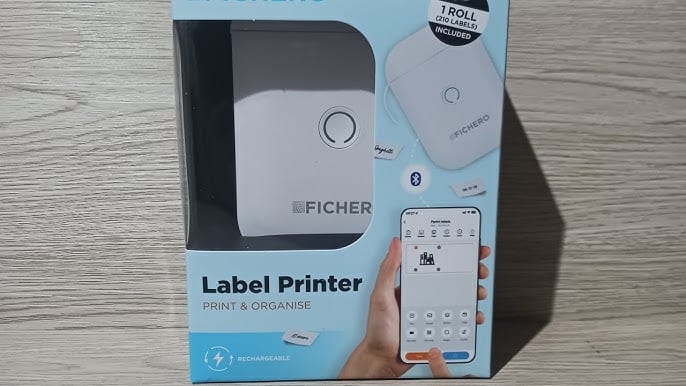
The Fichero is a tiny Bluetooth thermal label printer. USB-C charging, prints on small self-adhesive labels. The official app is called "Fichero Printer" on the Play Store. It does the job. But it's a black box. No API, no documentation, no protocol spec. And the app wants a lot from you for a label printer.
The App Wants What?
Before you print your first label, the Fichero app asks for 26 permissions. Twenty-six. For a label printer. Here's what a label printer apparently needs access to:
ACCESS_FINE_LOCATION         Your precise GPS location
ACCESS_COARSE_LOCATION       Your approximate location
CAMERA                       Your camera
READ_EXTERNAL_STORAGE        Your files
WRITE_EXTERNAL_STORAGE       Your files (write)
READ_MEDIA_IMAGES            Your photos
INTERNET                     Full internet access
ACCESS_WIFI_STATE            Your WiFi info
CHANGE_WIFI_STATE            Change your WiFi settings
CHANGE_WIFI_MULTICAST_STATE  Multicast on your network
AD_ID                        Your advertising ID
ACCESS_ADSERVICES_AD_ID      More ad tracking
ACCESS_ADSERVICES_ATTRIBUTION  Ad attribution tracking
BIND_GET_INSTALL_REFERRER    Where you installed from
Some of these are reasonable. The location permissions exist because of how Android handles Bluetooth. Bluetooth signals can reveal where you physically are, think retail stores using Bluetooth beacons to track which aisle you're standing in. So Android won't let any app scan for Bluetooth devices unless it also has location permission. That's not the app being sneaky. That's Android being cautious.
The camera makes sense too. The app lets you scan barcodes and photograph things to print on labels.
The WiFi permissions are baggage from the underlying SDK. It powers over 159 different printer models, some of which connect over WiFi. The Fichero doesn't use WiFi at all, but the permissions are baked into the shared code.
Then there are four permissions that have nothing to do with printing. Your advertising ID is a unique number assigned to your phone that follows you across every app, letting ad networks build a profile of what you do. The app also wants ad attribution tracking (which apps you installed after seeing an ad) and your install referrer (how you found the app store listing). That's a label printer quietly feeding your activity to an ad network.
The package name is com.lj.fichero but the SDK inside is from a company called LuckPrinter. The app is what's called a white-label product: a generic app rebranded with the Fichero name and logo. The same codebase runs receipt printers, A4 thermal printers, and industrial label makers. It supports 159+ printer models across four manufacturers. Your little label printer's app is just a skin on top.
One more reason to ditch the app and talk to the printer directly.
How the Printer Talks
The printer communicates over BLE. That's Bluetooth Low Energy, the version of Bluetooth that smartwatches, fitness trackers, and small gadgets use. It draws less power than classic Bluetooth and is designed for devices that send small amounts of data.
A BLE device offers "services," and each service has "characteristics" you can write to or read from. Think of services as radio channels, and characteristics as the send and receive buttons on each channel.
The printer advertises itself as FICHERO_5836_BLE. Ask it for a model name and it says "D11s." Ask it for a firmware version and it says "2.4.6." It's chatty. It just won't tell you how to print.
The Wrong Turn
So I did what anyone would do. I searched for someone who'd already figured it out.
A blog post by atctwo that documented a similar thermal printer called the L13. Same kind of device, and someone had already figured out how to talk to it. The L13 uses commands starting with 10 FF. I tried the same thing on the Fichero and it responded. No error checking, no packet wrapping, no structure. Just raw bytes in, raw bytes out.
10 FF 20 F0  ->  "D11s"        (model name)
10 FF 20 F1  ->  "2.4.6"       (firmware)
10 FF 50 F1  ->  00 56          (battery: 86%)
10 FF 40     ->  00             (status: ready)
The info commands worked. The blog also documented how the L13 prints. It sends images using a raster command. "Raster" means sending an image as rows of dots, line by line. The command (1D 76 30) tells the printer: here comes image data. The L13 wraps the print job with an enable command (10 FF F1 03) before the image and a stop command (10 FF F1 45) after.
The info commands already worked. Same protocol family, same command prefix, the print sequence documented step by step. This had to be the answer. I built a Python script around exactly that sequence. Rendered text to a black-and-white image, packed it into rows of dots, wrapped it with the enable and stop commands, and sent it over BLE.
Connected. Sent the image. The printer accepted every byte without complaint.
Nothing came out.
No error. No paper movement. No indication anything was wrong. The printer just silently ate 3KB of image data and did absolutely nothing with it. The worst kind of failure: the kind that gives you zero feedback.
The Decompilation
I went through everything I could think of. The BLE connection was solid. Info commands worked fine. The printer responded to status queries, battery checks, even a form feed command that made it advance the paper. It clearly understood me.
The image data looked correct. Non-zero bytes in the right rows, zeros where the white space was. The raster format matched what the L13 blog described.
I tried a completely different protocol. Some thermal printers use a packet format called Niimbot, with data wrapped in 0x55 0x55 headers. Sent those. The printer ignored every one. Not even an error back. Just silence.
I tested all four BLE channels, every writable characteristic, every combination I could find. Same result everywhere. The printer would happily chat about its battery level and firmware version, accept an entire image worth of data, and then do absolutely nothing with it.
Something was wrong with the print commands themselves. Not the image data. Not the connection. Not the transport. The commands wrapping the image.
The official app could print just fine. I'd been using it on my iPhone. But iOS apps are locked down. You can't pull them apart and look inside.
Then it clicked. I already had a way to talk to the printer. The problem wasn't the connection, it was knowing which commands to send. The app knows those commands. And the Android version of the app is just a file you can download, open up, and read.
I grabbed an Android phone, installed the Fichero app, paired it with the printer, and confirmed it could print. Now I had something to dissect.
Android apps are distributed as APK files. An APK is basically a zip containing compiled code. Tools exist that can turn that compiled code back into readable source. Not perfect, but close enough to understand what the code does.
I pulled the Fichero app from an Android phone using ADB (Android Debug Bridge, a tool that lets you control a phone from your laptop over USB):
adb shell pm path com.lj.fichero
adb pull /data/app/.../base.apk fichero.apk
jadx -d decompiled fichero.apk
38MB app. 13,000 classes. Inside: the LuckPrinter SDK, a multi-manufacturer printer framework supporting 159+ printer models across four different manufacturers.
The key was in how the code organizes printer types. Every printer model is defined as a type that inherits behavior from a parent type. Think of it like a family tree: a child gets everything from its parent but can replace specific things.
BaseDevice
  └── BaseNormalDevice        (Lujiang/L13 protocol)
        └── AiYinNormalDevice  (AiYin protocol)
              └── D11s         (our printer)
Here's the thing about the D11s. It's not a Lujiang device. It's an AiYin device. The base type uses 10 FF F1 03 to enable printing and 10 FF F1 45 to stop. The AiYin type replaces both of those with completely different bytes.
The Fix
The AiYin print sequence from the decompiled source:
1. 10 FF 84 00              Set paper type (gap label)
2. 00 00 00 00 00 00        Wake up (12 null bytes)
   00 00 00 00 00 00
3. 10 FF FE 01              Enable printer (AiYin)
4. 1D 76 30 00 0C 00 yL yH  Raster image data
   [pixel data...]
5. 1D 0C                    Feed to next label
6. 10 FF FE 45              Stop print job (AiYin)
Three bytes different. FE 01 instead of F1 03. FE 45 instead of F1 45. That's the entire difference between a printer that works and a printer that silently ignores you.
The image format: 96 pixels wide. Each pixel is either black or white, no gray. Eight pixels pack into one byte, so each row is 12 bytes. The printer doesn't understand text. Everything, even a simple "Hello World," must be drawn as an image first and sent as raw dots.
After swapping those three bytes: labels started coming out.
The Full Protocol
Once I had printing working, I didn't stop there. I went back through the entire decompiled SDK and pulled out every command I could find. Then I tested each one against the actual hardware. Some worked. Some returned nothing. Some existed in the code but the D11s just ignored them.
By the end I had a complete map of the printer. Info commands that return the model name, firmware version, serial number, battery level. Config commands that change the print density, paper type, auto-shutdown timer. A status byte that tells you exactly what's wrong when something is wrong: cover open, out of paper, low battery, overheated, currently printing. Each condition is a single bit in one byte.
I documented everything that works and everything that doesn't in a full protocol reference. If you want to build your own tool or port this to another language, that file has every command, every response format, and every byte value you need.
The Tool
The first version was a single Python script. It worked, but it mixed BLE transport, protocol logic, image processing, and CLI into one 427-line file. After some real-world use, I restructured it into a proper Python package.
Package structure
fichero/
  printer.py   - BLE transport, protocol, PrinterClient
  imaging.py   - image processing and text rendering
  cli.py       - command-line interface
  __init__.py   - library exports
Install it with uv and it gives you a fichero command. No more uv run printer.py.
CLI
uv run fichero info
uv run fichero text "Hello World"
uv run fichero text "Big Label" --font-size 40 --density 2
uv run fichero text "Small" --font-size 12 --label-height 120
uv run fichero image label.png --copies 3
uv run fichero set density 2
uv run fichero set shutdown 30
uv run fichero status
The text command now takes --font-size (default 24) and --label-height in pixels (default 240). Combined with the three density levels (0=light, 1=medium, 2=thick), you get real control over how labels look. Small font with light density for subtle tags, large font with thick density for warning labels.
Library API
The package also works as a Python library. If you want to build your own tool on top of it, or integrate the printer into something else:
import asyncio
from fichero import connect, PrinterNotFound

async def main():
    async with connect() as pc:
        info = await pc.get_info()
        print(info)

asyncio.run(main())
It exports PrinterClient, connect, and a set of exceptions: PrinterError, PrinterNotFound, PrinterTimeout, PrinterNotReady. No more silent failures. If the printer isn't there, you get PrinterNotFound. If it doesn't respond to a command in time, you get PrinterTimeout. If the cover is open or it's out of paper, you get PrinterNotReady.
Error handling
The original version had a problem: if the printer didn't respond to a command, the code just swallowed the timeout and continued. You'd get no indication that something went wrong. Now every timeout raises an exception. The CLI catches these and prints a clean one-line error instead of a Python traceback.
There was also a subtle race condition. The BLE notification buffer (where the printer's responses arrive) could get interleaved if two commands were sent close together. An asyncio lock now wraps the send-and-wait cycle as an atomic unit.
Web GUI
For people who don't want to touch a terminal, there's a browser-based interface. You can try it right now at https://0xmh.github.io/fichero-printer/ - no install needed, runs entirely in your browser.
Click Connect, pair with the printer through the browser's Bluetooth dialog, and you're ready to print. The UI has two tabs: one for text labels with a live 96px preview and adjustable font size, and one for image labels with drag-and-drop. Device info, battery level, and settings are all accessible from the same page.
It uses Web Bluetooth, so it's Chrome/Edge/Opera only. Firefox and Safari don't support it.
The Bottom Line
The Fichero D11s uses a proprietary protocol that looks similar to other thermal printers but has device-specific enable/stop commands. If you use the wrong ones, the printer accepts your data and does nothing. No error, no feedback. Just silence.
The fix was three bytes in the enable command and three bytes in the stop command. The rest of the protocol is straightforward once you know the right handshake.
What started as a single script to print labels has grown into a proper package with a CLI, a library API, a web interface, and a full protocol reference. If you have one of these printers and want to control it without the app, everything is at https://github.com/0xMH/fichero-printer